
One table of rules produces one shipping option. To let the customer choose between Standard and Express, or between delivery and pickup, you add a second table. Each table is priced independently and appears at checkout as its own option, named after the table.
Adding, duplicating, and reordering tables is a Pro edition feature.
Adding a second option
Below the rules editor — not on the WooCommerce zone screen — there is a second Add shipping method button. It appends a table holding one blank rule, which matches every order for free until you give it conditions; click the heading to rename it — that name is what customers see. A quicker route for a variation on an existing price list is the duplicate icon in the table's header, which copies the whole table, rules and all, so you only have to adjust the numbers and the name.
Example #1
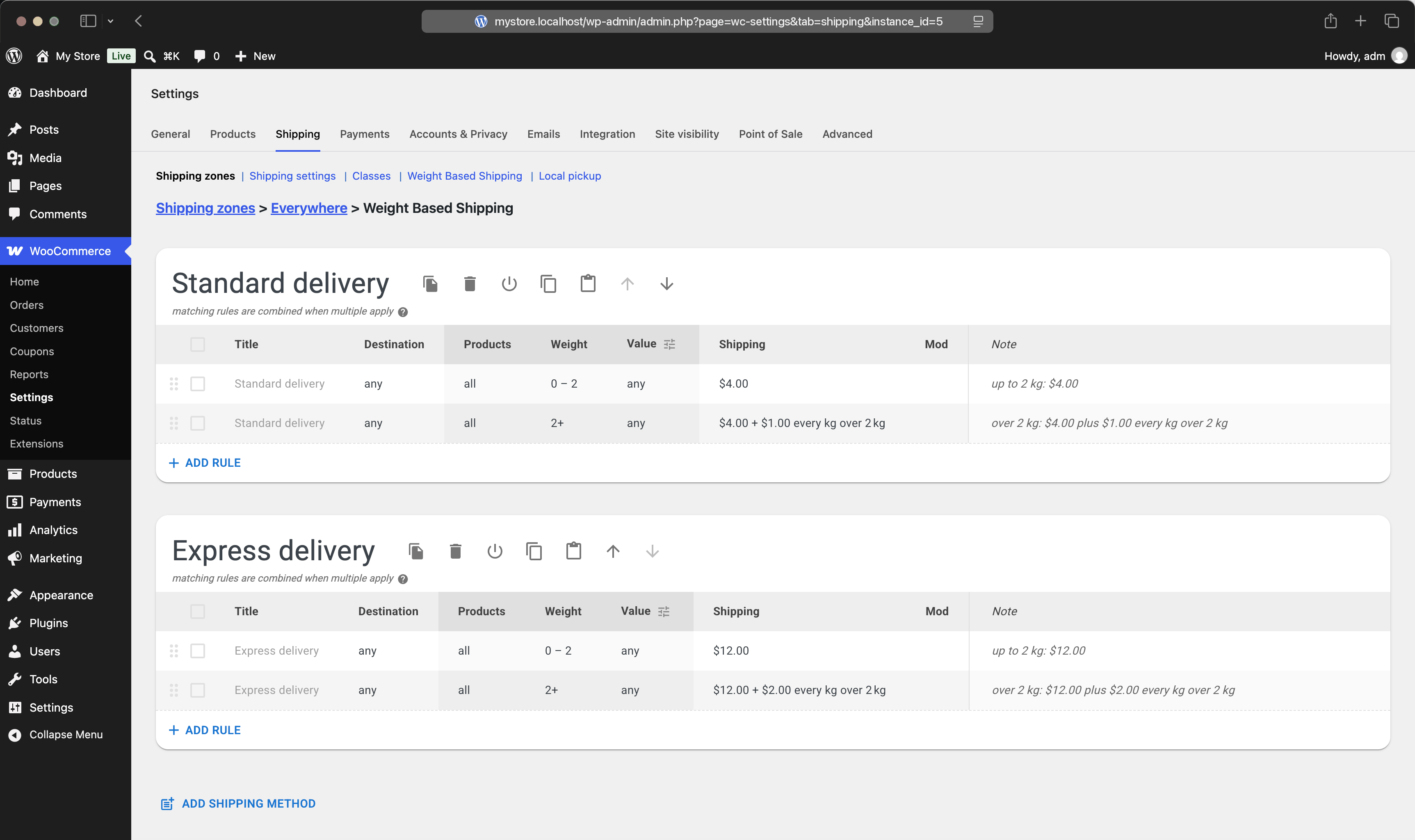
Table "Standard delivery": 0–2 kg → $4.00; 2 kg and over → $4.00 + $1.00 every kg over 2 kg.
Table "Express delivery": the same brackets at $12.00 and $12.00 + $2.00 every kg.
Cart: 3 kg.
Result: checkout shows Standard delivery $5.00 and Express delivery $14.00,
and the customer picks one.
On its own, a table must cover the whole cart
A table is offered on its own only if its rules account for every item in the order. This matters as soon as tables use the Products column. A table whose rules only ever look at Hoodies has nothing to say about a cart that also contains a t-shirt, so on its own it is not offered.
The fix is usually a catch-all rule at the bottom of each table — no conditions, a sensible charge — so that whatever else is in the cart is still priced.
Split shipping
There is a second way a partial table can still be useful. When two tables each cover part of the cart, the plugin can combine them into one option whose price is the sum and whose title joins both names with an ampersand, for example Standard delivery & Frozen courier. On the cart and checkout, each part is listed under the option with its price and the products it carries.
This is on by default and only comes into play when tables use product selections. It models the real situation where one order leaves in two parcels from two carriers. A combined option can join up to three parts.
If you would rather never offer a combined option, turn it off: the settings icon next to the table heading has a Split shipping switch, and it applies to all tables on the screen. It only appears when it could matter — two or more tables that select products — so in the free edition you will not see it at all. With it off, only tables that cover the entire cart are offered — and a cart that no single table covers gets no shipping options at all, so keep a catch-all table if you go that way.
Alongside other WooCommerce methods
Your tables are not the only source of options. Flat Rate, Free Shipping, and Local Pickup live in the same zone and are shown next to yours. The plugin has no power to hide, reorder, or override them — it only adds its own options to the list.
That answers a frequent question: when a free option and a paid one appear together, the paid one is not "leaking through" from the plugin. Either another WooCommerce method is producing it, or a paid rule in your own table still matches and needs a Value bound that switches it off above the threshold. WooCommerce itself has a setting to hide other rates when its own Free Shipping method applies, at WooCommerce → Settings → Shipping → Shipping settings.
Which option is selected by default is also WooCommerce's decision: it picks the first one in the list, and remembers the customer's choice for their session. Table order in the editor controls the order of your own options among themselves.