
New to the plugin? Getting started builds a first set of rules before this page takes them apart.
A rule applies to an order when all of its conditions are satisfied at once. There are four, and each has its own column in the rules table: Destination, Products, Weight, and Value. Any condition you leave alone matches everything, so a rule with all four untouched is a catch-all that always applies.
Column Destination: countries and states
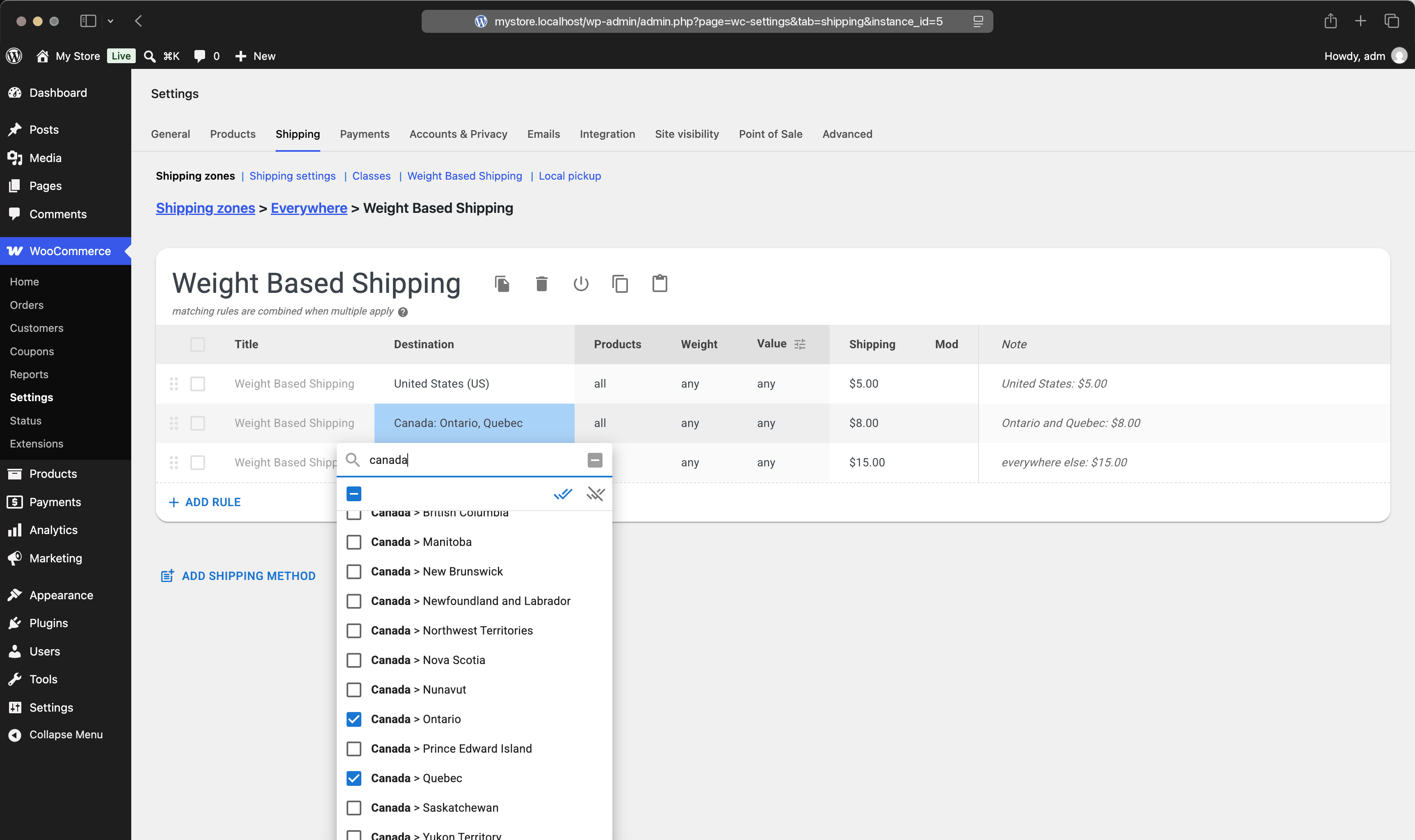
Destination limits a rule to particular countries and states, matched against the customer's shipping address. Click the cell to open a searchable list of countries, each expanding into its states where WooCommerce has a list for them. Tick whole countries, or individual states within a country.
Inside a shipping zone, the default shown as any is not "anywhere in the world". It is exactly the zone the method sits in. In the global method, which belongs to no zone, any really does mean everywhere. A rule can only narrow that further, never reach outside it: a method in a zone covering Germany and Austria will not ship to France because a rule names France.
So there is no need to copy the zone's locations into the rules. Leave Destination at any and every rule covers the whole zone. Set it only when one part of the zone should be priced differently from another — a surcharge for the islands inside a national zone, say. That also means one list to maintain instead of two that can drift apart. Shipping rates by country builds a table that prices several countries at once.
At the moment the list itself is not narrowed to the zone's locations: it offers every country you ship to. The zone is still obeyed, so ticking a place it does not cover is not an error — the rule simply never matches. Shipping zones and the global method follows the whole chain, from WooCommerce's own country list down to this column.
Note: a rule that names countries matches only once the customer's country is known, and a rule that names states needs the state to be known as well. This is a common source of no shipping options available. A rule left at any matches either way.
Whether WooCommerce knows one before the customer types anything is decided by WooCommerce → Settings → General → Default customer location. Left at its default, Shop country/region, every visitor starts out in your own country, so country rules and country-based zones apply from the first page view. Set to No location by default, there is no country until an address is entered, and only rules and zones that name no place at all can match until then. Geolocate reads a country-level database, so it supplies a country and no state: state rules wait for the address whichever setting you choose.
There is no postcode field here. Postcodes belong to WooCommerce shipping zones, which support lists, wildcards like SW1*, and ranges like 10000...19999. Put the method inside such a zone and leave Destination at any: the zone has already picked the postcodes, and the rules inherit them. Shipping zones and the global method has the details.
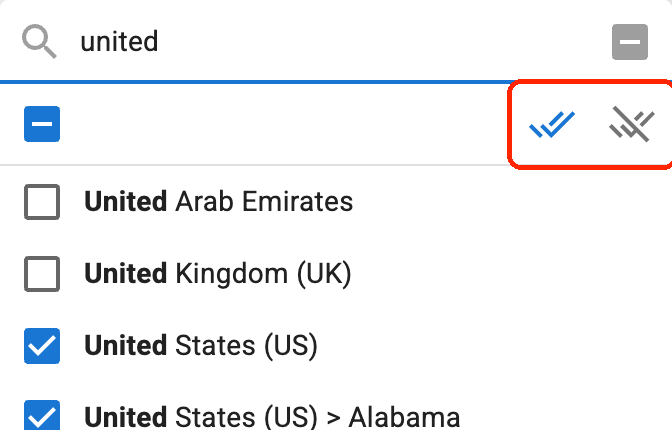
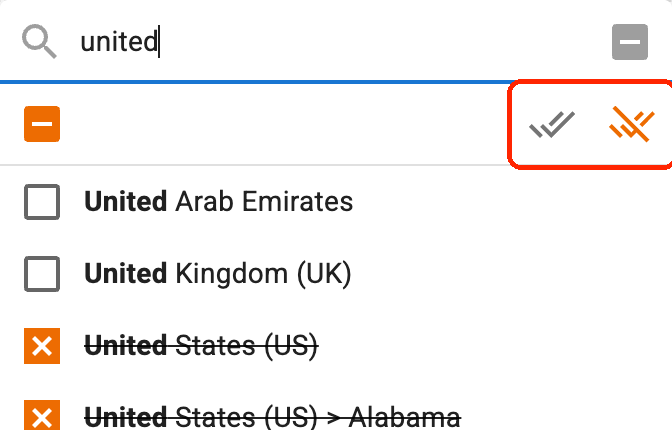
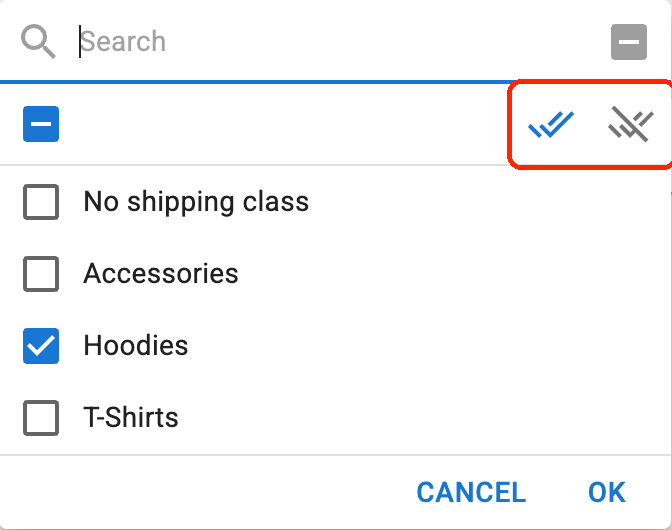
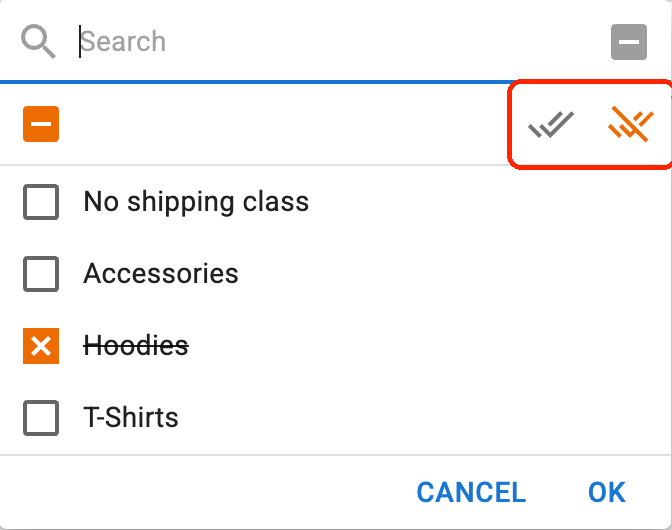
The two buttons in the row below the search field decide what the ticks mean: allow selected matches the places you ticked, deny selected matches everywhere except them. Deny is how you write "everywhere but the US" without listing two hundred countries. The cell then reads not United States (US).
Column Products: WooCommerce shipping classes
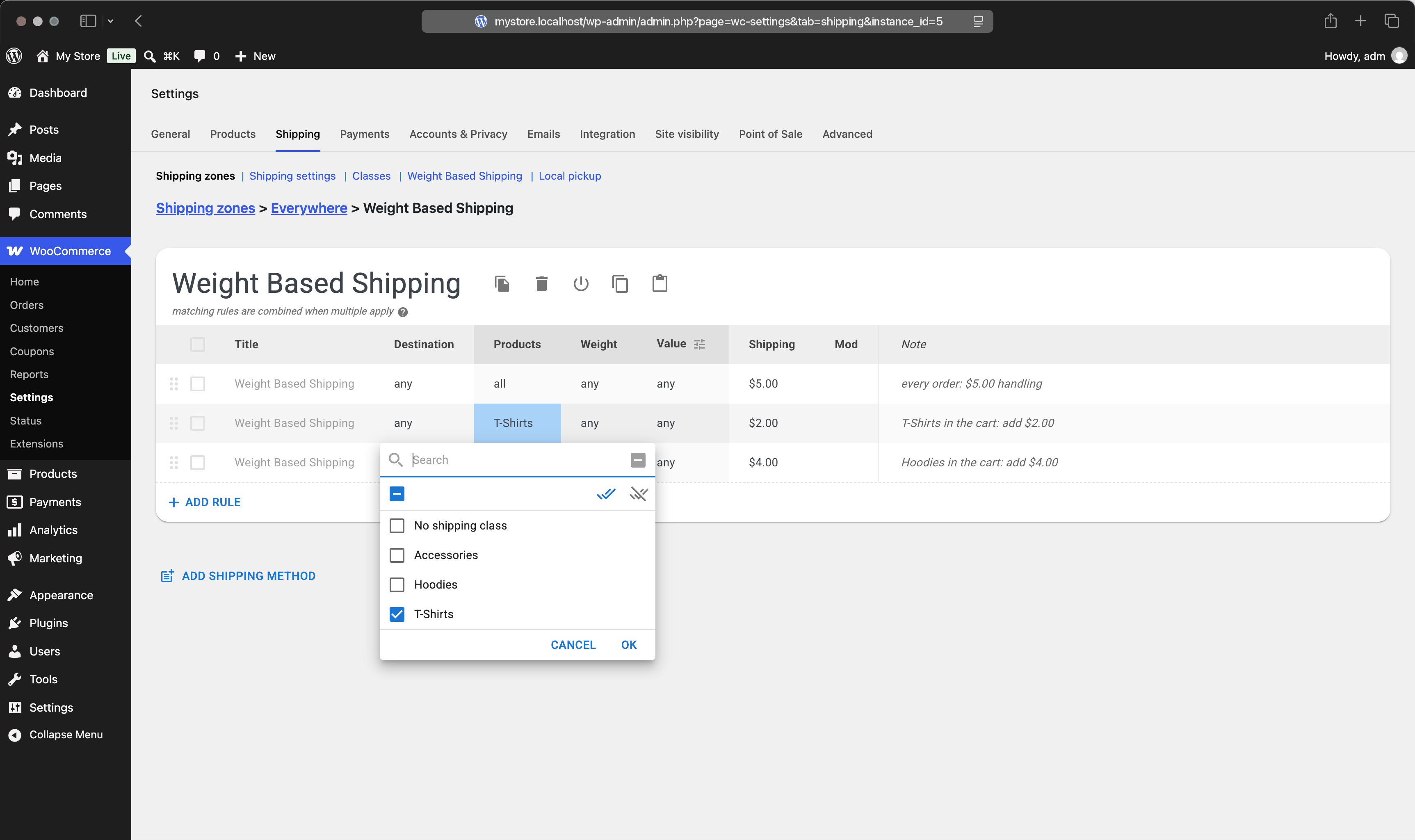
Products selects which items in the cart the rule is about, using WooCommerce shipping classes. It is a Pro edition feature; in the free edition the column is read-only.
This column behaves differently from the other three. The others ask a yes-or-no question about the order. Products filters the cart down to the items whose shipping class you picked, and the Weight and Value conditions of that same rule are then measured over the filtered items only. A rule for the Hoodies class with a 2–5 kg weight range asks about the weight of the hoodies.
It is an allow-list, not a requirement list. Selecting Hoodies and T-Shirts does not mean "the cart must contain both". It means "look at the hoodies and the t-shirts, ignore everything else".
Products with no shipping class are not invisible: the list starts with No shipping class, which you can select like any other class. If the rule finds no matching items in the cart, the rule does not match at all.
Shipping classes are a WooCommerce feature, created at WooCommerce → Settings → Shipping → Classes and assigned per product under Product data → Shipping. The plugin has no condition for categories, tags, or individual products, so a product you want to price separately needs its own class. Rates by shipping class works an example through.
The same two buttons appear here, and invert the selection in the same way. Ticking Hoodies under allow selected points the rule at the hoodies; the same tick under deny selected points it at everything else, and the cell then reads not Hoodies.
Column Weight: the cart weight range
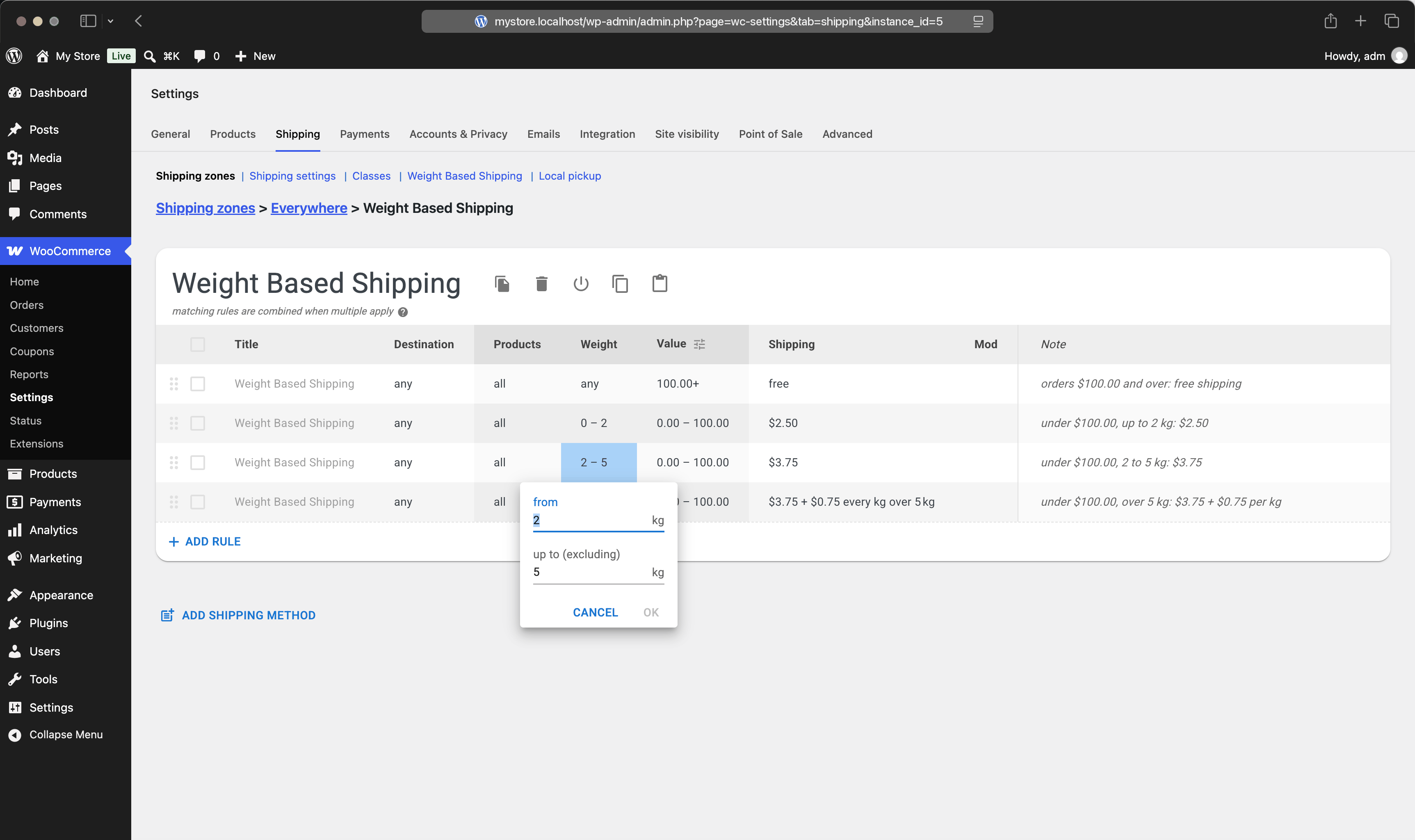
Weight compares a range against the total weight of the items the rule looks at — the whole cart, or the subset chosen by Products. The editor has two fields, from and up to (excluding). Leave from empty for zero, leave up to empty for no upper limit.
The bounds are not symmetric, and this is the single most useful thing to know about ranges: the lower bound is included, the upper bound is not. A range of 0–5 covers everything up to but not including 5 kg. The next range therefore starts at exactly 5, not at 5.01.
Example #1
Rules: 0–5 kg → $5.00; 5–10 kg → $9.00.
Cart: 5 kg exactly.
Result: the second rule matches, so shipping costs $9.00.
Example #2
Rules: 0–5 kg → $5.00; 5.01–10 kg → $9.00.
Cart: 5 kg exactly.
Result: neither rule matches, and the method disappears from checkout.
Example #2 is the classic gap. Brackets should share their boundaries, and the last one should have no upper limit, so that every possible cart weight lands somewhere. Shipping by weight lays out a full set of brackets.
The numbers are in your store's weight unit, whatever that is — the plugin never converts kg to lbs or grams for you. Product weights and units covers that, along with what happens to products that have no weight at all.
Column Value: the order subtotal
Value works exactly like Weight, but compares money instead of mass. For a rule that narrows itself with Products, it is the price of the selected items. For a rule that does not, it is the WooCommerce cart subtotal — the same figure the customer is looking at on the checkout page, virtual products included. That is deliberate: a threshold should fire at the number on screen, and quietly leaving items out of the comparison would put the two out of step.
Which price is compared is worth settling before you write a threshold. By default the plugin compares the subtotal before tax and after discounts. In a store with 20% VAT displayed in prices, an order the customer sees as $59.99 is $49.99 to the rule — and a $50 threshold does not trigger. The After taxes and After discounts checkboxes in the Value column header change this, and they apply to the whole table, not to one rule. Order value, taxes, and currency explains both, and Free shipping over an amount puts a threshold to work.
Conditions that can never match
Two combinations silently match nothing, and the editor warns about both. A range whose start equals its end — 5 to 5 — has no width, so no cart falls inside it. A range whose start is greater than its end is backwards; the editor offers a swap link to fix it.
A third case has no warning: a Products selection in allow mode with nothing ticked matches no items and therefore never applies. If a rule seems to be ignored, open its cells and read them back as a sentence — "look at these items, and apply when they weigh this much, cost that much, and are going there". If the sentence describes an order that cannot exist, you have found the problem.