
Nearly every problem is one of these: no option appears, the price is not the one you meant, the price is stale, an option appears twice, or the editor itself misbehaves. Work through the matching section below; within each, the quickest check comes first.
Symptom "There are no shipping options available"
The full message is "There are no shipping options available. Please ensure that your address has been entered correctly, or contact us if you need any help.", and on the cart page you may see "No shipping options were found for …" instead. Either way it means no method returned a price. The text comes from WooCommerce, not from the plugin, and it appears whether the cause is a zone, another plugin, or a rule that did not match.
Either no zone matched the address, or the method in the zone that did match found no rule to apply. No shipping options at checkout walks both halves in order, from shipping debug mode to the rate cache.
Symptom The price is higher than expected
Start from the assumption that more than one rule matched, because that is what usually happened. Rules in a table are added together, so a $5.00 handling rule and a $4.00 class rule make a $9.00 option, correctly.
To find out which rules contributed, disable them one at a time — select a rule, press the power icon, save, and reload the cart. When the price changes, the last rule you touched is part of the sum. If the rules were meant as alternatives rather than parts, give them non-overlapping conditions or, in the Pro edition, use the Stop mod.
If the price is unfamiliar in a way no rule explains, check whether the option even belongs to this plugin: disable the plugin's tables and see whether the option survives. Another shipping plugin, or WooCommerce's own Flat Rate, may be producing it.
Symptom Free shipping is offered alongside a paid option
A rule that charges nothing adds zero to the sum; it does not switch other rules off. If a paid rule still matches above your threshold, it still charges.
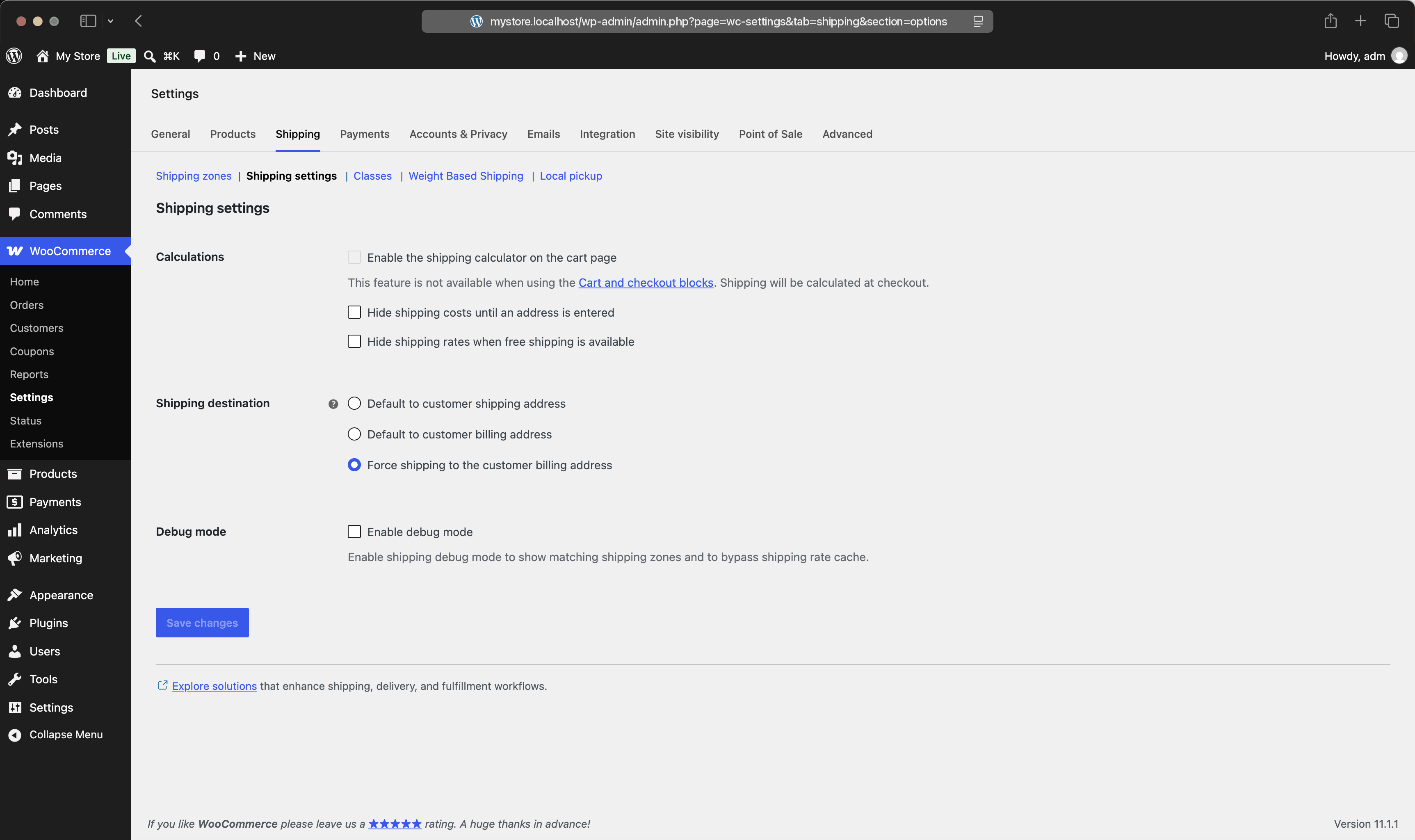
Bound the paid rules with a Value range that ends at the threshold, so they stop matching above it, or, in the Pro edition, put the free rule first and give it the Stop mod. If the second option comes from WooCommerce's own Free Shipping method rather than from your table, its setting to hide other rates lives in WooCommerce → Settings → Shipping → Shipping settings.
Symptom A threshold triggers at the wrong amount
The Value condition compares the subtotal before tax and after discounts by default. In a store showing tax-inclusive prices, an order displayed as $59.99 can be $49.99 to the rules. Switch After taxes on in the Value column settings to compare what the customer sees. Order value, taxes, and currency has the worked example.
Symptom Changes do not show up at checkout
WooCommerce caches shipping rates for the duration of a visitor's session. Saving rules clears that cache, but changing a product weight does not, so your own test checkout can keep showing the old price.
Turn on WooCommerce → Settings → Shipping → Shipping settings → Enable debug mode while testing: it disables the rate cache, and it names the matched zone on the cart page, which answers the zone question at the same time. Turn it off when you are done — it is not meant for a live store.
If the price is still stale, the page itself is probably cached. Exclude cart and checkout from your caching plugin, and try a private window to rule out the browser and a stale session.
Symptom Two nearly identical options
The same price list usually exists twice: once in the Weight Based Shipping tab as the global method, and once inside a zone. Both produce options and the customer sees both. Decide which copy owns the price, and disable the other. Shipping zones and the global method explains the pairing.
Symptom The rules editor is blank or will not save
This is nearly always another plugin printing something into the settings page. Close any admin notice sitting above the editor and reload. If that does not help, deactivate other plugins and switch to a default theme, confirm the editor works, then restore them one at a time until the culprit shows itself.
After a plugin update, an editor missing a feature you expect is usually the browser holding an old copy of the interface: reload with a hard refresh.
Ask us
If the checks above have not found it, send it over — working out awkward shipping setups is a large part of what we do, and we would rather look at it than have you keep guessing.
Three details let us answer with a concrete setup rather than a question in return: what goes in the cart, in what quantity, to which address; the shipping options you expect, with names and prices; and what you get instead. A screenshot of the rules table next to one of the checkout is often enough on its own. Send whatever you have, though — we can ask for the rest.
If you are setting the plugin up for the first time, Getting started walks through it in order, and the FAQ answers the questions that come up most.
Contact support — Pro customers by email, free-edition users in the WordPress.org forum.