
WooCommerce decides whether a shipping method is offered to a customer; the plugin decides what it costs. The part WooCommerce owns is shipping zones, and most confusion about "my rules are right but nothing shows up" starts there rather than in the rules.
How zones decide
A zone is a set of regions with a list of shipping methods attached. When an order arrives, WooCommerce walks the zone list from top to bottom, picks the first zone whose regions contain the shipping address, and stops. Only that zone's methods are offered. Zones further down never get a turn.
So zone order is a priority list, narrow to broad. A zone covering your own country belongs above a zone covering your continent, which belongs above the catch-all. A zone whose regions match everything, sitting at the top, swallows every order — one of the most common reasons a carefully built zone below it never fires. A zone with no regions at all does the same thing: it matches every address, so an empty zone left near the top quietly captures the whole store.
The bottom of the list holds Locations not covered by your other zones, which catches everything the zones above did not. Leave it without methods and customers outside your zones get no shipping options at all.
Where the list of places comes from
Where a zone can reach, and where a rule inside it can reach, is the end of a chain that starts well before the plugin.
WooCommerce ships a list of countries, and for some of them a list of states or provinces. That list is the raw material: a place missing from it cannot be offered anywhere downstream. The United Kingdom arrives without counties, France without departments, the Netherlands without provinces. Custom code snippets or plugins can add them — our free Location Pack for WooCommerce exists for exactly this.
That list is then narrowed twice in WooCommerce → Settings → General: Selling location(s) says where you sell, and Shipping location(s) says where you ship, either following the selling list or naming its own. Only what survives both can be put in a zone or picked in a rule's Destination, which is why a country you expected can simply not be there.
The zone narrows it again to its own regions, and a rule inside the zone cannot reach past them. The global method is the exception: it belongs to no zone, so its rules see everywhere you ship. A rule's Destination is the last step, picking from whatever is left.
At the moment the Destination list is not narrowed to the zone's own locations: it offers every country you ship to, whichever zone the method sits in. The zone is still obeyed — a rule can never match an address the zone does not cover — so naming France inside a zone that covers Germany is not an error and says nothing, the rule just never matches. If a rule looks right and never fires, check that its destinations lie inside the zone.
Adding the method to a zone
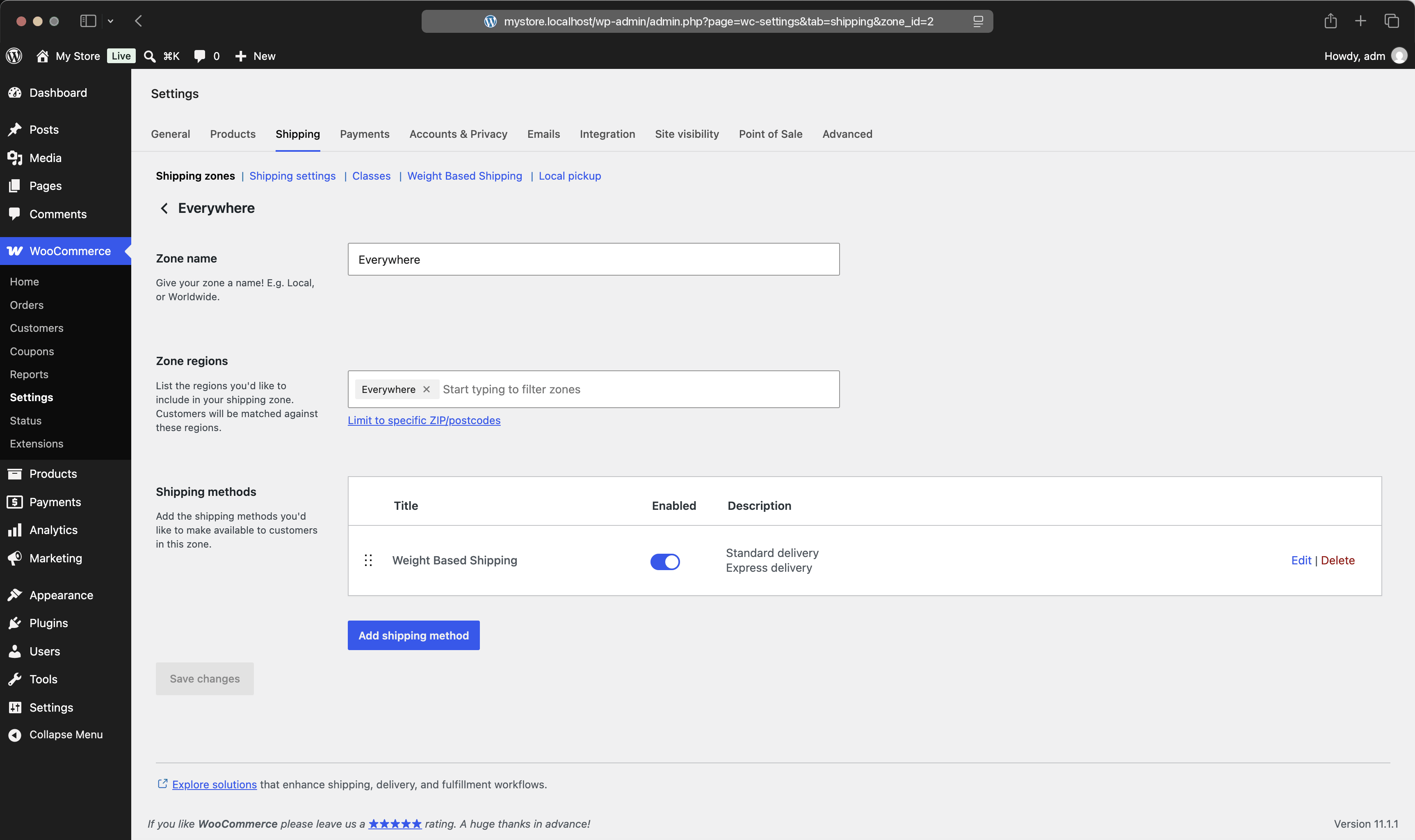
Open WooCommerce → Settings → Shipping, click a zone, press Add shipping method, and choose Weight Based Shipping. The new row appears alongside any Flat Rate, Free Shipping, or Local Pickup already there; click it to open the rules editor.
Each instance of the method carries its own rules. Adding it to three zones gives you three independent rule tables, which is what you want when regions differ in price, and a maintenance burden when they do not. For the latter case, the editor can copy rules between instances — see The rules editor.
Inside a zone, a rule's Destination starts out meaning the zone itself. The default any is the zone's own regions, not the whole world, and a rule can only narrow that — never reach beyond the zone. So leave it alone unless you want to price one part of the zone differently from another; copying the zone's countries into every rule only creates a second list to keep in sync. Rule conditions covers the column in full.
The global method
There is a second place to put rules: the Weight Based Shipping tab in the shipping settings, next to Shipping zones and Classes. Rules defined there are not tied to a zone and are evaluated for every order, whatever the address.
Its first screen explains the choice and offers two buttons, Go to shipping zones and Set up global shipping rules. If you are unsure, take the zones route. Zones keep geography in one place and behave the way the rest of WooCommerce does.
The global method earns its keep when your prices genuinely do not depend on the zone — a single worldwide price list, or a surcharge that should apply everywhere — and when you would otherwise duplicate the same table into many zones. You can use the Destination column inside global rules to handle country differences — Shipping rates by country does exactly that — keeping one table instead of many.
Both at once, and duplicate options
The global method and zone methods are not alternatives: if both are configured, both produce options, and the customer sees them together. Two near-identical options at checkout almost always mean the same price list exists in the global tab and in a zone. Decide which one owns the price and empty or disable the other.
You can also disable a whole table without deleting it, with the power icon in the table's header — useful while you work out which copy to keep.
Living with other shipping methods
The plugin adds options; it never removes them. Flat Rate, Free Shipping, and Local Pickup in the same zone keep working exactly as before, and nothing in the rules can hide them. If an unwanted option appears next to yours, it belongs to another method, and the place to turn it off is that method's settings.
Local Pickup deserves a note, because it is a special case in recent WooCommerce: it is configured once for the store rather than per zone, and appears alongside zone methods. If pickup disappeared after you enabled a global shipping method, update to the current plugin version — that interaction was fixed in 6.18.0.